Dashboard Configuration
The SevenAC Dashboard is the central management panel for SevenAC. It allows administrators to manage licenses, view bans, monitor the anti-cheat system, and manage their server configuration.
Dashboard Overview
The dashboard provides access to the main SevenAC management features:
- Bans - view and manage player bans.
- Licenses - manage your SevenAC license and server activation.
- Anticheat Panel - monitor detections and anti-cheat activity.
- License Reset - reset a license when moving SevenAC to another server.
- Server Configuration - information and configuration required to run SevenAC.
Bans
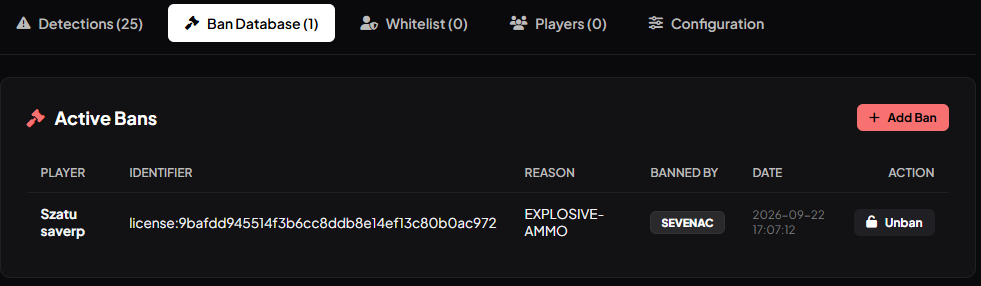
The Bans section allows you to manage players who have been banned by SevenAC.
Administrators can view information about existing bans and use the available information to identify a specific ban.
Available Information
- Ban ID
- Player ID
- Player license
- Ban reason
- Ban date
- Ban status
Screenshot
Licenses
The Licenses section contains information about your SevenAC license and its current status.
From this section you can manage your license and check whether it is correctly assigned to your server.
License Configuration
The license key is configured in your server.cfg:
set sevenac_key "7AC-EXAMPLE-LICENSE"Replace the example key with your actual SevenAC license key.
Starting SevenAC
After configuring the license, start the SevenAC resource:
set sevenac_key "7AC-EXAMPLE-LICENSE"

ensure sevenac
The license configuration should be loaded before the SevenAC resource starts.
License Reset
The dashboard also allows you to reset your SevenAC license.
A license reset can be used when you need to move SevenAC to another server or change the server associated with your license.
Resetting a License
- Open the Licenses section.
- Select the license you want to reset.
- Select Reset License.
- Confirm the reset.
- Configure the license on the new server.
- Restart the server.
After the reset, configure the license again in server.cfg:
set sevenac_key "7AC-EXAMPLE-LICENSE"Then start SevenAC:
ensure sevenacImportant: Never share your real license key publicly.
Anticheat Panel
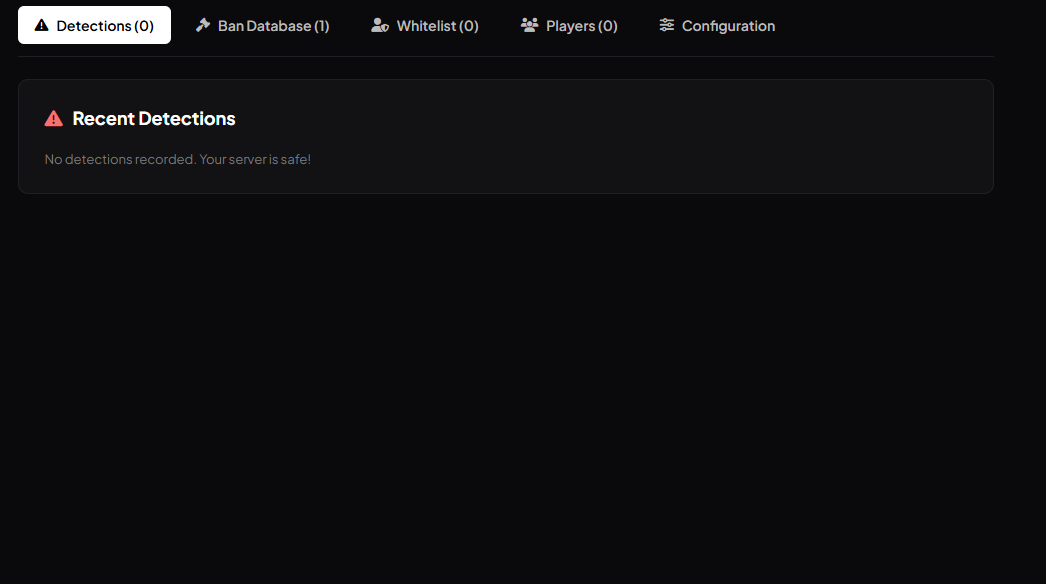
The Anticheat Panel is the main monitoring section of the SevenAC Dashboard.
It allows administrators to monitor activity detected by SevenAC and review security-related information.
Features
- View detections
- Monitor suspicious activity
- Review player activity
- View anti-cheat events
- Monitor active servers
- Access security information
Screenshot
Dashboard Navigation
The dashboard is organized into separate sections so administrators can quickly access the required information.
Server Configuration
To activate SevenAC on your server, add your license key to server.cfg:
set sevenac_key "7AC-EXAMPLE-LICENSE"Then start the SevenAC resource:
ensure sevenacA basic configuration looks like:
# SevenAC Configuration
set sevenac_key "7AC-EXAMPLE-LICENSE"

ensure sevenac
After changing your configuration, restart your server.
Security
Your SevenAC license key is private and should never be exposed publicly.
Do not share your real key in:
- GitHub repositories
- Screenshots
- Discord messages
- Public configuration files
- Videos or streams
- Public documentation
If you believe your license key has been exposed, reset the license from the SevenAC Dashboard.
Screenshots
Dashboard screenshots should be stored in:
images/
└── dashboard/
    ├── bans.png
    ├── licenses.png
    └── anticheat-panel.png
The screenshots are displayed in their respective sections above.